The calendar gives you an overview of your event business: which events are taking place and when, what the occupancy rates are – and where there is still space available. Ideal for planning and avoiding double bookings.
From the quote to the calendar – created automatically
You won’t enter the same appointment twice. The calendar automatically records whatever you enter.
01
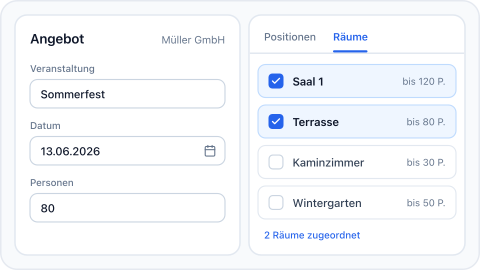
Create a quote with a date and venue
In the offer, you enter the event name, date and number of attendees – and assign one or more rooms in the ‘Rooms’ tab.
02
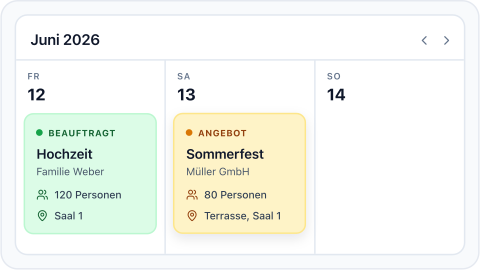
It appears in the calendar
As soon as a booking has a date, it will appear on the correct day – showing the client, number of attendees and venue, colour-coded according to status.
03
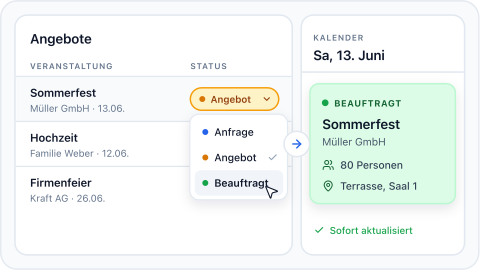
Change status – the calendar updates automatically
You can change the status directly in the quotation list, for example from ‘Quotation’ to ‘Assigned’. The calendar will update immediately to reflect the new status.
“We used to have a paper schedule hanging in our office showing three rooms. Now I filter the calendar by room and can tell within five seconds whether an appointment is suitable.”
Thomas Greiner
Catering companies
Highlights
All calendar features at a glance.
Monthly view
The whole month on one screen – showing the client, number of people and room for each day. Click to return to ‘Today’.
Room filter
Limit the view to a single room – important when there are several event spaces.
Status filter
Quote, Option, Assigned, Completed – show exactly the stage you need.
Print preview
Generates a clear, printed summary of the filtered month.
Reading rights for the team
You can use roles to grant staff read-only access to the calendar – without allowing them to make changes to events.
Can be operated on the move
Check your calendar whilst on the move – the view adapts to your smartphone.
Automatically. As soon as a booking has an event date, it appears in the calendar – along with the client, number of attendees and room. You’ll never have to enter the same dates twice.
Can I view just one room?
Yes. You can filter by room and by status. For example, this way you’ll only see confirmed bookings in the Grand Salon – and you’ll immediately see which slots are available.
Can I print out the calendar?
Yes. Clicking ‘Print’ produces a clear overview on paper – including the filter you’ve applied. Handy for the office or a team briefing ahead of a busy weekend.
Can my team view the calendar without changing any quotes?
Yes. You assign permissions via roles for each area. The calendar has read-only access – for example, the service management team can view all appointments without having write access to the services.
Is the calendar included in every module?
Yes – the calendar is included from the Start module onwards. From the Professional package onwards, you can also manage multiple rooms, which makes the room filter particularly useful.
Sie sehen gerade einen Platzhalterinhalt von Vimeo. Um auf den eigentlichen Inhalt zuzugreifen, klicken Sie auf die Schaltfläche unten. Bitte beachten Sie, dass dabei Daten an Drittanbieter weitergegeben werden.
Sie sehen gerade einen Platzhalterinhalt von YouTube. Um auf den eigentlichen Inhalt zuzugreifen, klicken Sie auf die Schaltfläche unten. Bitte beachten Sie, dass dabei Daten an Drittanbieter weitergegeben werden.
Sie sehen gerade einen Platzhalterinhalt von Facebook. Um auf den eigentlichen Inhalt zuzugreifen, klicken Sie auf die Schaltfläche unten. Bitte beachten Sie, dass dabei Daten an Drittanbieter weitergegeben werden.